
Add a device
Adding a device means a device that is already in the group hands the group key to the new device. It works in either direction — pick whichever device has the screen the other one can read. Either way, the code is a QR code and the same text with a Copy button.
Use this when the new device can scan or paste.
-
On a device already in the group, open Pairing and press Show pairing code.
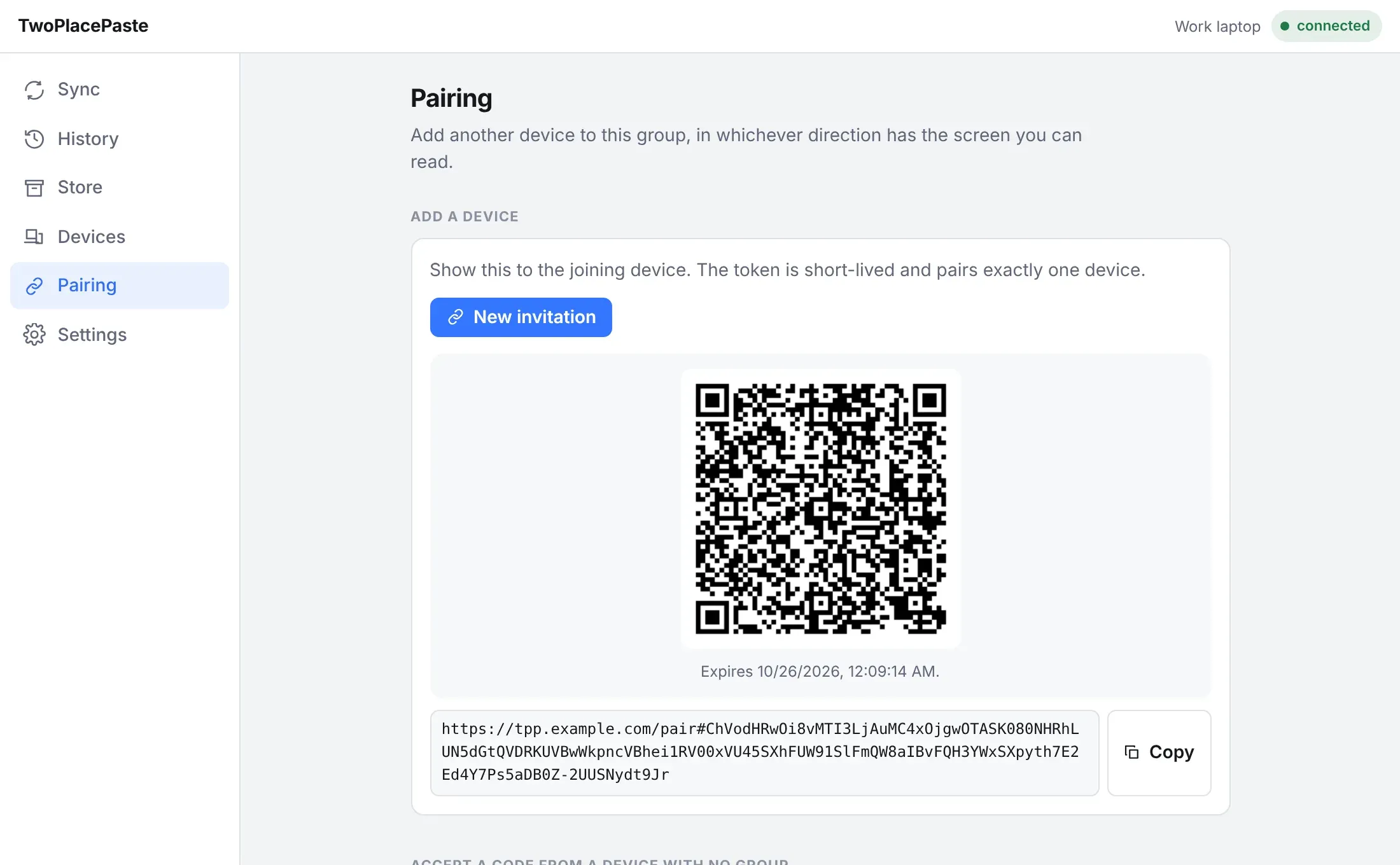
The code works once and expires after 5 minutes.
-
On the new device, open Pairing, paste the code into Join a group and press Join.
-
Keep the first device’s app running until the new one says it is paired — it is the one that sends the group key.
Use this when the member is the one that can read a code — for example a phone scanning a desktop that is not in the group yet.
-
On the new device, open Pairing → Show a code instead. Type the relay’s address (for example
https://tpp.example.com) and press Show a code. -
On a device already in the group, open Pairing, paste the code under Accept a code from a device with no group and press Connect.
-
Check the dialog. It names the new device and shows a fingerprint of its key. Confirm only if the fingerprint matches the one the new device shows.
A device can be in one group at a time. To move it to another group, use Settings → Leave the group first.