
Admin page and groups
The admin page lives at https://tpp.example.com/admin/. Sign in with ADMIN_PASSWORD. It shows
names, sizes and counts — never content, because the relay has none to show.
The page is a web app built into the relay itself, so it needs JavaScript in the browser. It loads
nothing from anywhere but the relay, and it talks to the relay only through /admin/api/.
The header links to six screens: Dashboard, Groups, Tags, Tokens, Audit log and Settings. Each group also has a page of its own, reached from Groups. On a phone the screens are behind the Menu button, and lists show one card per row; tap a group’s card to open it.
Install it as an app
Section titled “Install it as an app”The admin page can be installed on a phone or a computer and opened like an app, in its own
window, from its own icon: the TwoPlacePaste clipboard with a person on it, so it is not
mistaken for the clipboard app itself. This needs the relay on HTTPS: browsers install apps only from
secure origins, so on a plain-http address the page works but does not offer to install.
- Android, and Chrome or Edge on a computer: open Menu → Install app, or the browser’s own Install item in its address bar or menu.
- iPhone and iPad (Safari): tap Share, then Add to Home Screen.
Installed, it keeps only its own files (the page, its script and its icons) so that it can open without a network; without one it says the relay could not be reached, and Try again reloads it. No group, token or audit entry is ever stored on the device, and you still sign in with the admin password: signing out works as it does in the browser.
Updates
Section titled “Updates”An installed app can stay open for days, so it checks which version of the admin the relay serves when it starts, every few minutes while it is open, and whenever you come back to it. After you upgrade or rebuild the relay, a bar appears at the bottom of the screen: A new version of the admin is available. Update loads the new version; Later hides the bar until the relay has yet another one. The admin never reloads by itself, so nothing you are typing is lost. A browser tab does the same.
The check compares the admin’s own files, not a version number, so it works the same for releases, Beta and Nightly builds and a relay built from source. Upgrading only the server part, with the same admin screens, shows no bar.
Lists: search, sort and pages
Section titled “Lists: search, sort and pages”The lists on Groups, Tags, Tokens and Audit log work the same way:
- Search with the box above the list. It ignores case, and every word you type must appear
somewhere in the row, so
anna laptopfinds a group named “Anna” with a device called “laptop”. It runs as you pause typing; Enter runs it at once and Esc or ✕ clears it. - Sort by clicking a column’s header; click it again to reverse it. Names sort A to Z first, and sizes, counts and dates largest or newest first. On a phone, where the list becomes cards, use Sort by above it instead.
- Pages of 25, 50 or 100 rows, chosen under the list with Rows per page. The browser remembers your choice for each list.
The search, sort, page and filters are part of the address, so a view can be bookmarked or shared with another admin, and the browser’s back button steps back through them.
Groups and tokens are named in these addresses by an opaque handle, never by their id or value: a token is a credential, and a group’s id is the token that created it.
Hand out a group
Section titled “Hand out a group”A creation token lets one device create one group. Make one per person (or per set of devices that should share a clipboard).
-
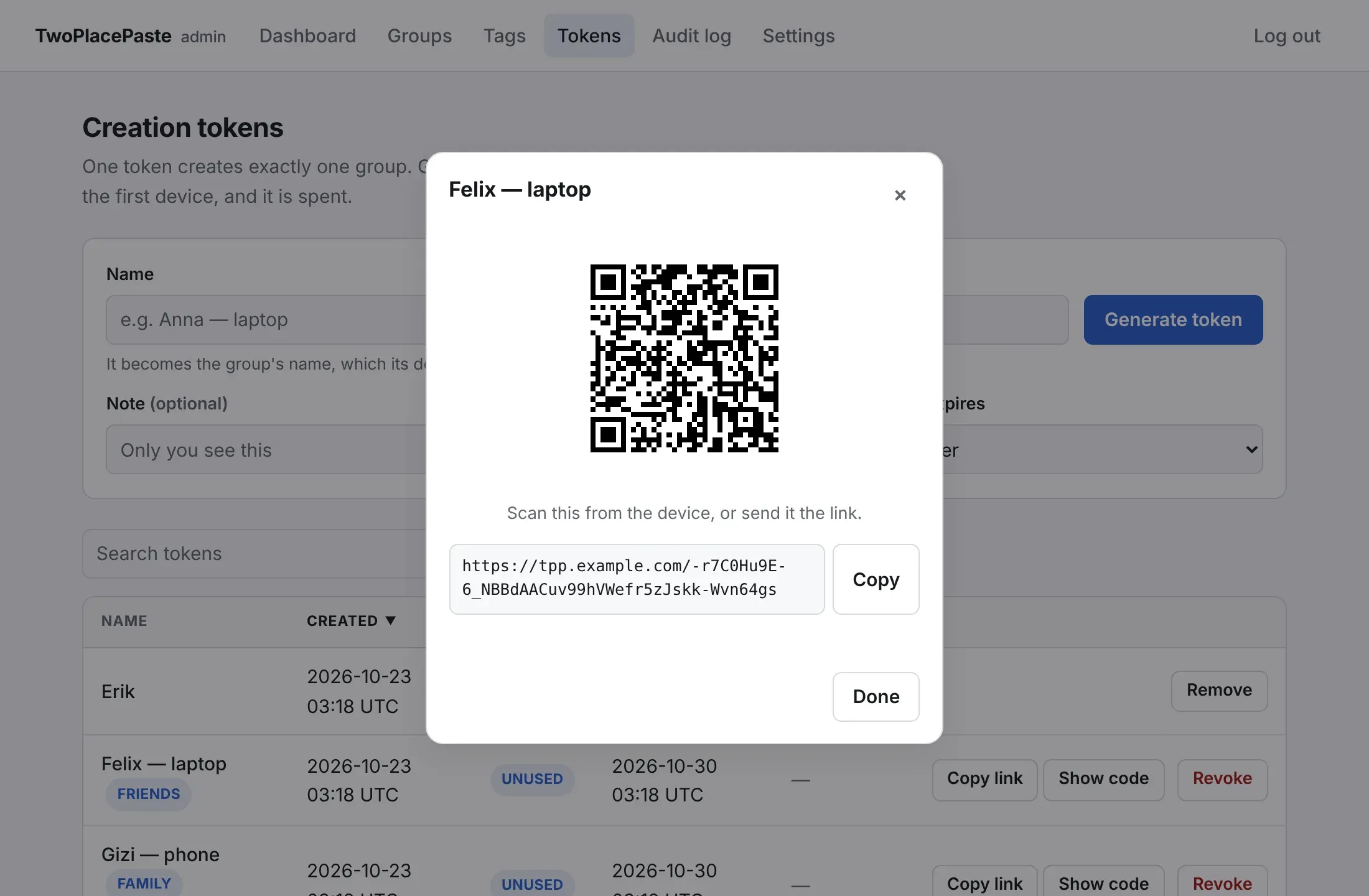
Open Tokens and type a name that tells you who it is for. The name becomes the group’s name, which its devices show; you can rename the group later. Optionally add:
- a Note that only you see;
- a Tag, which the new group starts under (see Tags);
- when the Link expires: never, or in 1, 7 or 30 days.
Press Generate token.
-
Send the link to its owner — Copy link puts it on your clipboard — or let them scan the QR code. The link of an unused token can be fetched again from its row with Copy link or Show code; the list itself never holds it. They paste it into the app under Pairing → Create a group. See Create a group.
- One token creates exactly one group; using it again fails.
- A
GETon a creation link returns 404 on purpose, so link previews, crawlers and mail scanners cannot use it up. - An expired token creates nothing; its link answers like an unknown one. The list shows it as expired, and Remove clears it away.
- An unused token can be revoked from the same page. A used one cannot: its group already exists. To remove the group, delete it.
- Status above the list shows only the unused, used or expired tokens.
The dashboard
Section titled “The dashboard”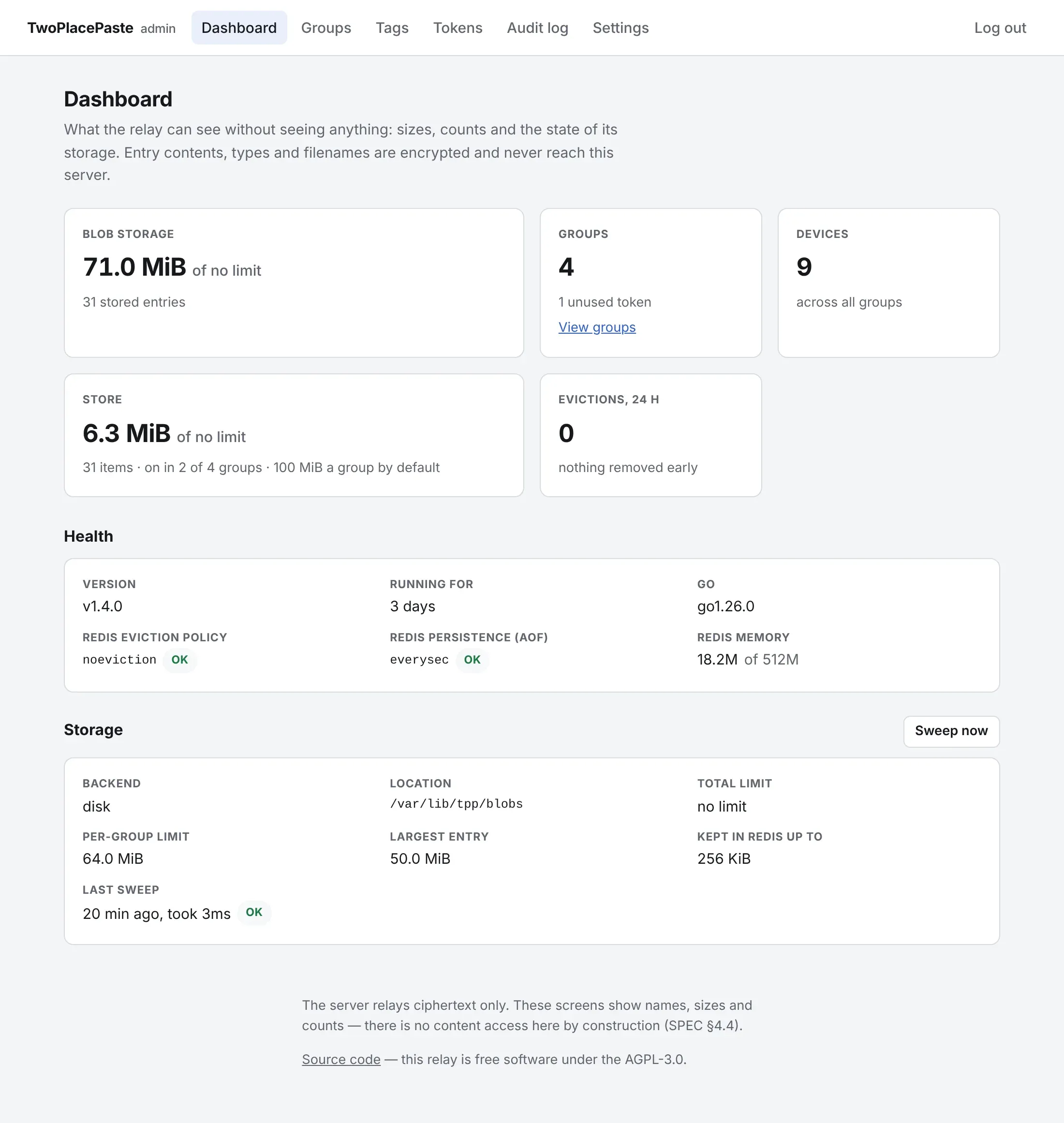
- Blob storage used against
TPP_BLOB_MAX_TOTAL_BYTES. - Groups, devices, unused tokens and how many groups are stale, with a link to Groups.
- Evictions in the last 24 hours — entries removed early to make room. If this is often above zero, the storage limits are too tight.
- Store: what every group’s store holds together against
TPP_STORE_MAX_TOTAL_BYTES, its item count, and how many groups have it on. - Health: the relay’s version and uptime, and how Redis is set up. Redis must run with
maxmemory-policy volatile-lruand AOF on (see Docker); the card marks anything else, becauseallkeys-lruor no AOF can silently lose groups. A managed Redis that refusesCONFIG GETshows unknown. - Storage: the backend and its limits, and when the last cleanup sweep ran. Sweep now runs one straight away.
If part of the dashboard cannot be read (say Redis is down), it says which part and shows the rest.
The groups
Section titled “The groups”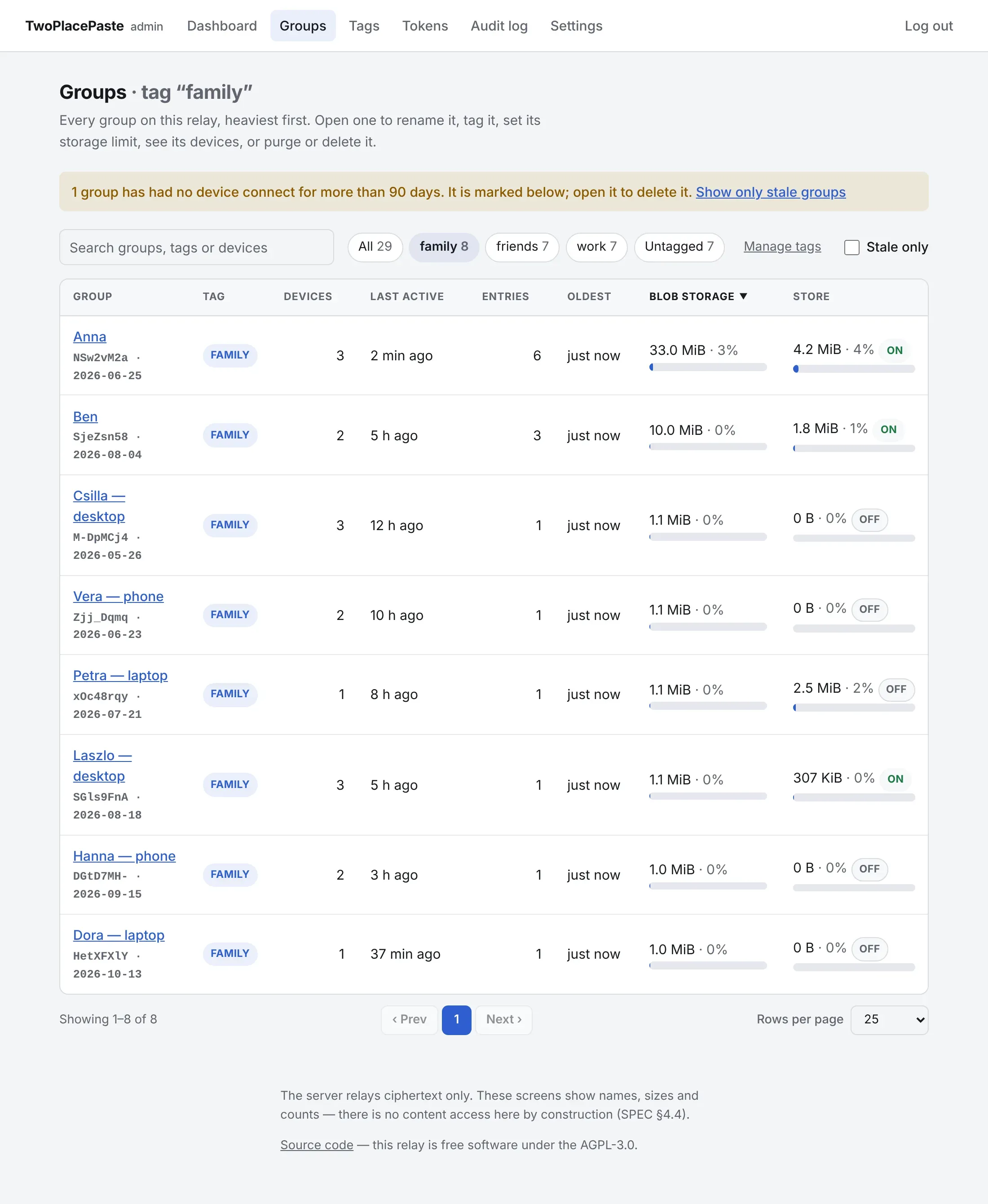
Groups lists every group, heaviest first: its tag, devices, last activity, live entries, oldest entry, storage against the group’s limit, and its store — what it holds against the store limit, marked on, off or emptying. The search looks at group names, tags, the short ids and device names. Next to it, the tag buttons narrow the list to one tag or to the untagged groups, and Stale only to the stale ones; Manage tags leads to the Tags screen.
Click a group to open its page. Badges mark a group that is stale (no device has connected for longer than the stale threshold) or over limit (its limit was lowered below what it holds). To remove a stale group, open it and delete it; groups are deleted one at a time.
Manage a group
Section titled “Manage a group”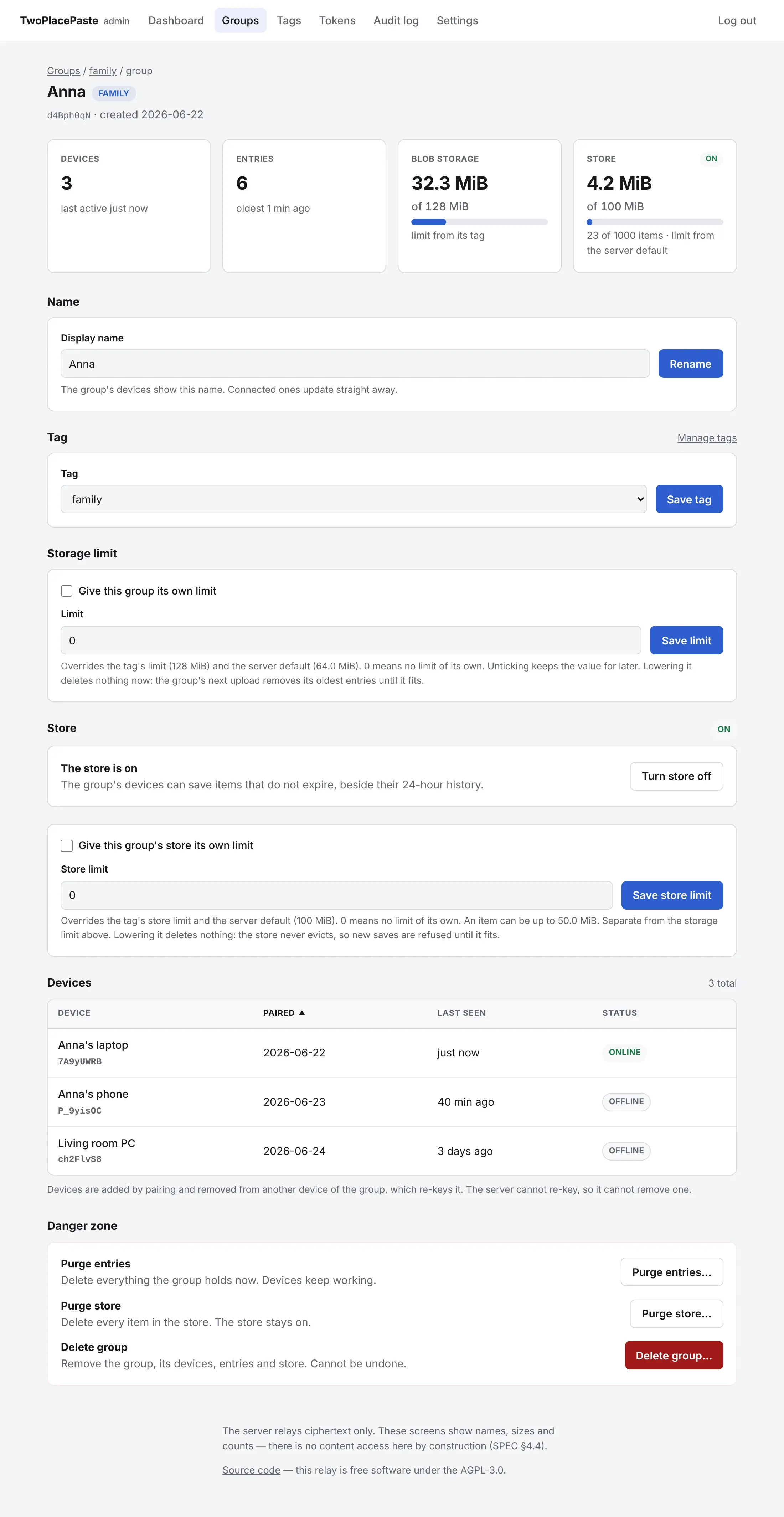
A group’s page shows its devices, entries, blob storage and store in a row at the top — the store marked on, off or emptying — and lets you:
- Rename it. The group’s devices show the new name; connected ones update at once.
- Put it under a Tag, or under none.
- Give it its own Storage limit (see below).
- Turn its Store on or off, and give the store its own limit.
- See its Devices: name, when each was paired, when it was last seen, and whether it is online now. Devices are added by pairing and removed from another device of the group, which re-keys it. The relay cannot re-key, so the admin page cannot remove a single device.
The store
Section titled “The store”The store keeps items the group saves on purpose — a password hint, an address, a logo — beside its 24-hour history. Items do not expire: they stay until a device deletes them, the store is purged, or the group is deleted. Like everything else, they are encrypted on the devices; this page shows only how much the store holds, never names or contents.
- It is off for every group until you click Turn store on. The group’s apps then show a Store tab; while it is off they say the store is turned off for the group.
- Turn store off blocks it without deleting anything: the items are kept, and come back as they were when you turn it on again.
- It has its own store limit, separate from the storage limit above, chosen the same way: the
group’s own, then its tag’s, then
TPP_STORE_MAX_GROUP_BYTES. The store never evicts: a save that does not fit is refused, and lowering the limit deletes nothing.
Purge store
Section titled “Purge store”Purge store… appears once the store holds anything. After a confirmation page it deletes every item in the store, for all the group’s devices; the switch and the store limit stay as they are. The page answers at once and the store is emptied in the background — the store section says emptying until it is done, and the group’s devices see the store as turned off until then. It cannot be undone.
Purge entries
Section titled “Purge entries”Purge entries… deletes the group’s history now, before its 24 hours are up, and frees its storage. Its store is not touched. Its devices keep working and their clipboards are not touched; open history lists drop the entries.
Delete a group
Section titled “Delete a group”Delete group… removes the group, its devices, every entry it holds and every item in its store, after a confirmation page. It cannot be undone. The store is emptied in the background, so a large one does not hold the page up.
- Connected devices are disconnected at once. Devices that are offline find out when they next connect. Either way the app says the server admin deleted the group, rather than that the device was revoked — for 30 days; after that a device coming back just sees that it was revoked.
- To use this relay again, a device leaves the group in its settings and then creates a new group with a new token, or pairs with a device in another group.
- The token that created the group stays in the token list, marked group deleted.
Tags and storage limits
Section titled “Tags and storage limits”Tags group groups, such as “family” or “friends”. A group has at most one tag. Create tags on the Tags screen, then put groups under them from each group’s page or when you generate a token. The Tags screen lists each tag’s groups, devices and blob storage, and its Store: what the stores of its groups hold together, and in how many of them the store is on.
Each group has a blob storage limit; when an upload would go over it, the group’s oldest entries are removed to make room. The limit is chosen in this order, the first that is on winning:
- the group’s own limit, set on its page;
- its tag’s limit, set on the Tags screen;
- the default,
TPP_BLOB_MAX_GROUP_BYTES.
Each limit has a checkbox and a size such as 5 GiB or 500 MB. Unticking the box keeps the size
for later. 0 means the group has no limit of its own, though TPP_BLOB_MAX_TOTAL_BYTES still
applies, and no limit can be above it. Lowering a limit below what a group already holds deletes
nothing straight away: the group’s next upload removes its oldest entries until everything fits.
Deleting a tag leaves its groups untagged; they fall back to their own limit or the default.
A tag can also carry a store limit for its groups’ stores, in place of
TPP_STORE_MAX_GROUP_BYTES, and within TPP_STORE_MAX_TOTAL_BYTES. It works like the storage
limit, except that nothing is ever evicted. A tag cannot turn a store on; that is decided on each
group’s page.
Settings
Section titled “Settings”Settings holds what can change without a restart. Today that is the stale threshold: how many days a group may go without any of its devices connecting before the Groups screen marks it stale. The default is 90 days.
Audit log
Section titled “Audit log”Audit log lists the last 1,000 things done on these screens, newest first: sign-ins (and failed or rate-limited ones), tokens created and revoked, groups renamed, tagged, limited, purged and deleted, stores turned on, off or limited, tags and settings changed, and sweeps requested — with the time and the address it came from. It names groups and tokens, and never holds a token value, a password or a key. Search it by action, name, detail or address, or pick one kind of entry with Action.