
History
The History tab lists everything the group wrote in the last 24 hours, newest first.
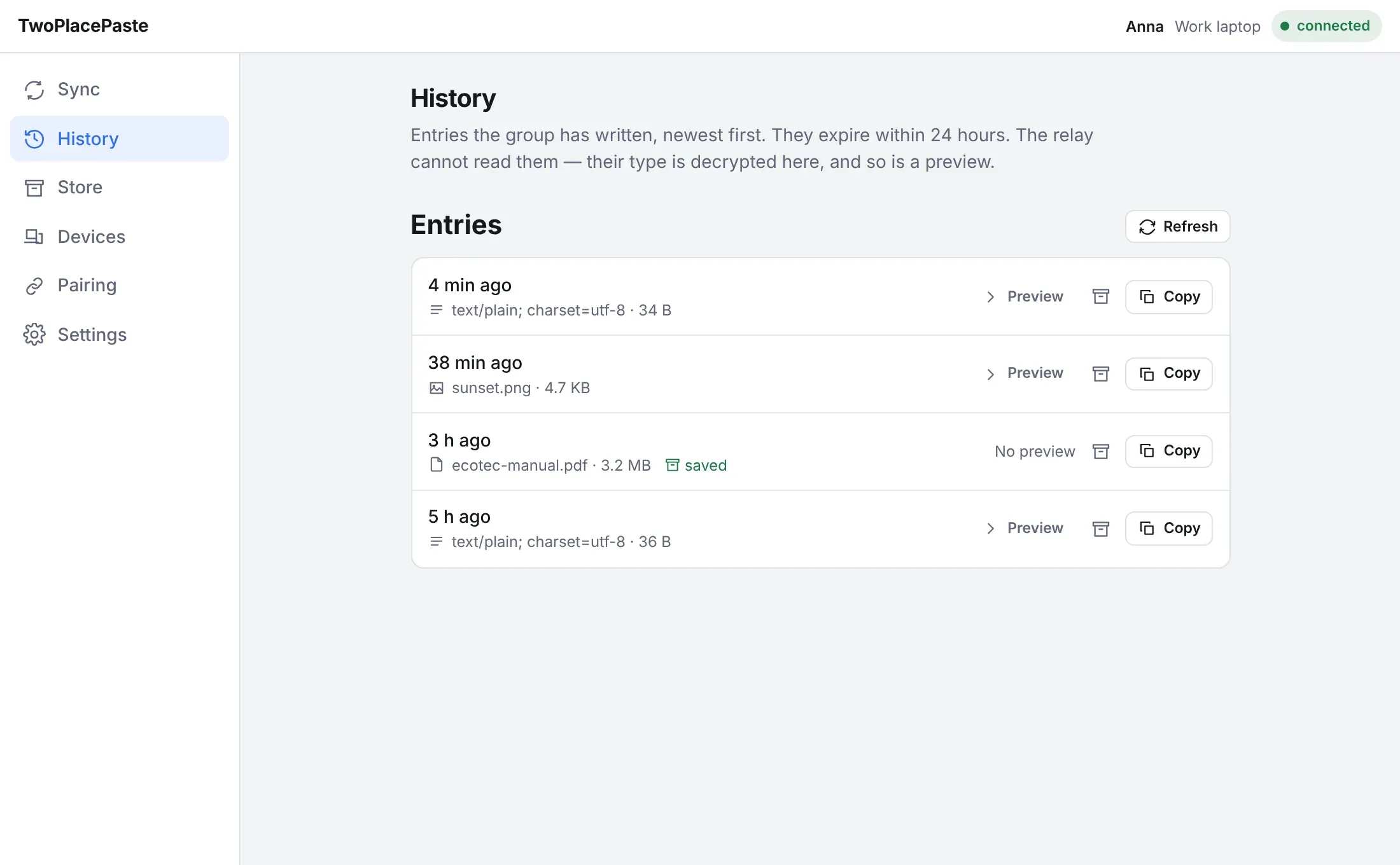
- Each row shows when the entry was written, its type and its size. These come from the entry’s small encrypted header, so listing History downloads none of the entries themselves.
- Preview downloads and decrypts the entry to show it here, without touching your clipboard.
- Copy downloads and decrypts the entry and puts it on this computer’s clipboard.
- The store button saves the entry to the group’s Store, where it does not expire. It appears only when the server admin has turned the store on. Entries the store already holds are marked saved.
- Refresh reloads the list.
What can be previewed
Section titled “What can be previewed”Text and images you copied can always be previewed. Copied files can be previewed when they are one of these types:
| Type | Files |
|---|---|
| Images | PNG, JPEG, GIF, WebP, BMP, ICO, AVIF, SVG |
| Text | Plain text, logs, Markdown, CSV, JSON, XML, YAML, TOML, config files, HTML and most source code |
| Audio | MP3, WAV, Ogg and Opus, FLAC, AAC and M4A |
| Video | MP4, WebM, MOV |
Anything else, such as a PDF or a Word document, shows No preview; use Copy to open it. An entry larger than Download automatically up to in Settings shows No preview too, because a preview downloads the whole entry. Copy is never limited.
A few details:
- Copied text and text files show their first 4,000 characters, in a box you can scroll; Shown in part means there is more. An HTML file is shown as its source code, not as a web page.
- Audio and video open in a player and only start when you press play. Which formats actually play
depends on your browser: an iPhone
.movrecorded in HEVC, for example, usually plays only in Safari. When the browser can’t play a file, the preview says so; Copy still works. - A file whose content doesn’t match its name (say, a
.pngthat isn’t really an image) is not previewed. You can still copy it.
On Android
Section titled “On Android”The Android app’s History tab works the same way: tap an entry to open it. Copied text and images, and files of these types up to 4 MB, show a preview above the entry’s buttons. Text shows its first 4,000 characters, as on the desktop.
| Type | Files |
|---|---|
| Images | PNG, JPEG, GIF, WebP, BMP |
| Text | The same text files as on the desktop |
Other files, and larger ones, open straight to Save or open on this device. Saving a file right after previewing it does not download it again.
Entries disappear on their own 24 hours after they were written. On a busy relay with tight storage limits, an older entry can be removed earlier to make room; it then simply disappears from the list.