
Store
The Store tab keeps items the group saves on purpose. Unlike the History, items do not expire: they stay until someone deletes them. Every device in the group sees the same store.
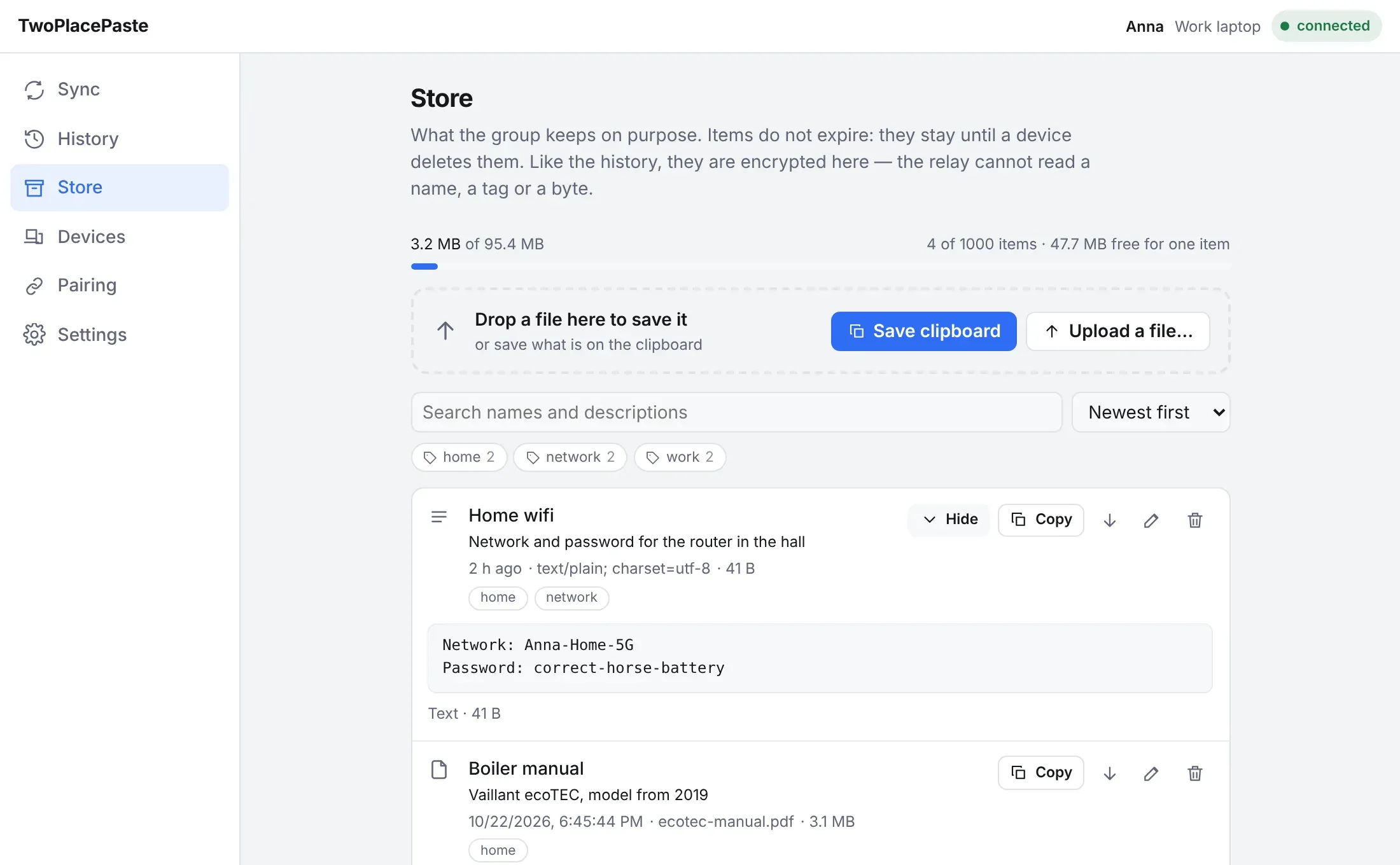
Like everything else, items are encrypted on your devices. The server cannot read an item’s content, name, description or tags; it only knows how big each one is.
Save something
Section titled “Save something”There are three ways to put an item in the store:
- Save clipboard, in the box at the top of the Store tab, saves whatever you have copied.
- To save a file, drop it on that box, or click Upload a file… to choose it.
- The store button on a History entry saves that entry, so it outlives its 24 hours. The entry itself still expires as usual.
Each save asks for a name (required), a description and tags. A file starts with its filename as the name, whether you copied it, dropped it or saved it from the History. Type a tag and press Enter; the tags already in use are suggested as you type. The counters show the limits: a name up to 200 bytes, a description up to 800, and up to 16 tags of 32 bytes each.
Duplicates
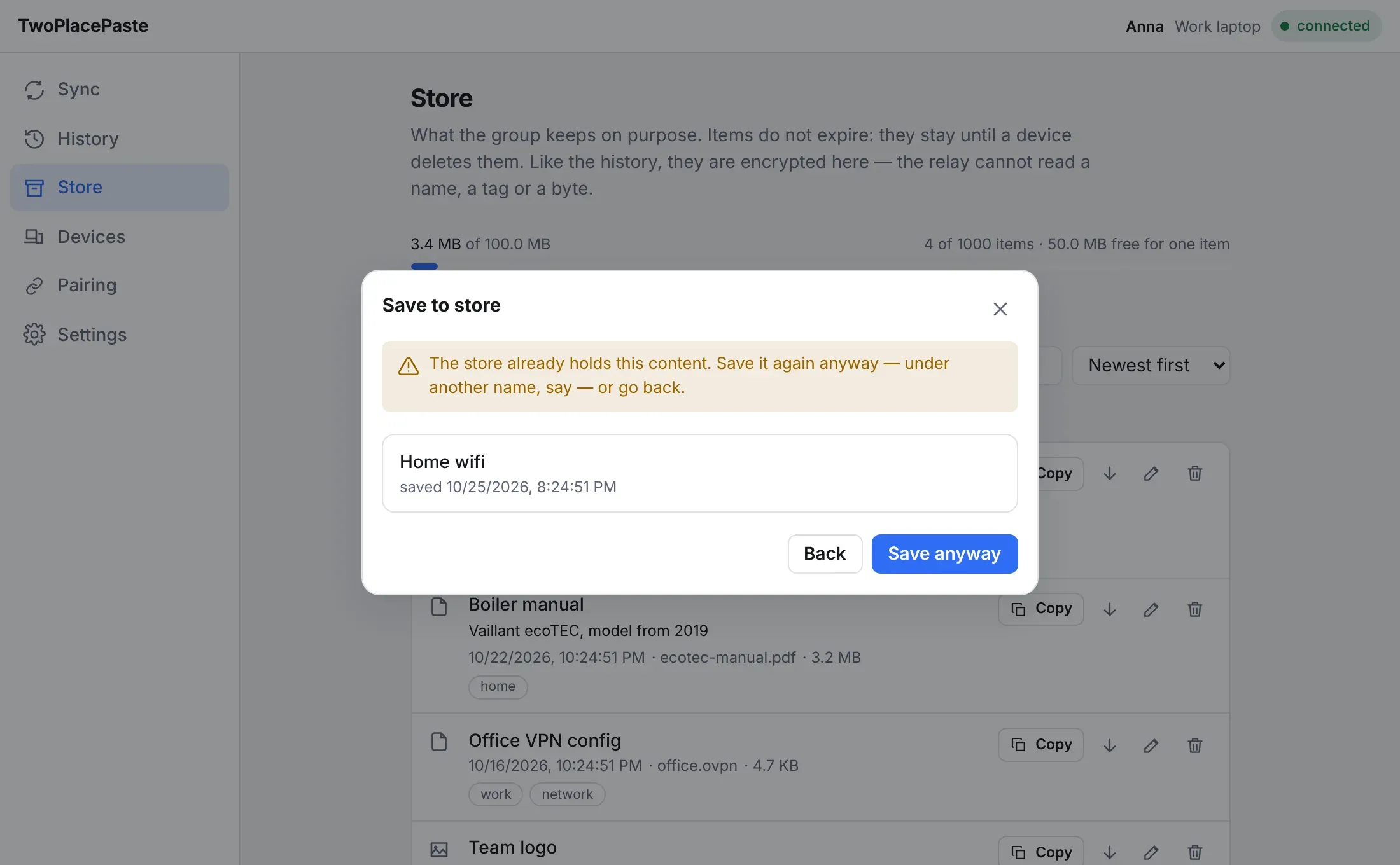
Section titled “Duplicates”If the store already holds exactly the same content, you are told which item it is before anything is saved. Save anyway saves it again, for example under a different name; Back returns to the form.
History entries the store already holds are marked saved.
Find an item
Section titled “Find an item”- Search matches every word you type against names and descriptions, ignoring case.
- Tags under the search box filter the list; pick several to see only items that carry all of them. Each tag shows how many items carry it.
- Sort by newest, oldest, name, or size (largest or smallest first).
Searching happens on your device: the server cannot search what it cannot read.
Use an item
Section titled “Use an item”- Preview opens an item under its row without touching your clipboard: text is shown as text, images as images, and audio and video play. It is offered for the same types as in the History (see What can be previewed), and not for an item larger than Download automatically up to in Settings, since a preview downloads it. Hide closes it.
- Copy puts the item on this computer’s clipboard, like Copy in the History. It is not sent to your other devices as a new clipboard entry.
- The download button saves the item as a file. A file keeps its own name; text and images are named after the item.
- The pencil edits the name, description and tags. If another device edited the same item first, your change is not saved: the list shows their version, and you can edit again.
- The bin deletes the item for every device in the group, after asking. This cannot be undone.
The bar at the top shows how much of the group’s store is used, how many items it holds, and the largest item that still fits. When the store is full a save is refused — nothing is removed to make room, as the History does. Delete items you no longer need, or ask the server admin for more room.
On Android
Section titled “On Android”The Android app has the same Store tab, with the same search, tags and sorting:
- Save clipboard saves what you have copied; Add file opens your phone’s file picker, which gives the app only the file you choose.
- An open History entry has a Save to store button, and entries the store already holds are marked saved in the store.
- Tap an item for its actions. Text, images and files of the types the History previews on Android show a preview above them; copying or saving the item right after does not download it again.
- Text and images are copied to the clipboard; a file, which the Android clipboard cannot hold,
is saved to
Downloads/TwoPlacePasteor opened in another app, as you choose. - Edit changes the name, description and tags; Delete asks first.
Items this device cannot open
Section titled “Items this device cannot open”If an item cannot be decrypted on this device — it was saved with a group key this device has not received yet, or it is damaged — it is listed under Items this device cannot open with a Delete button. An item saved before a device was removed from the group stays readable for everyone still in it.